
Understanding the Reviewers Tab
Overview
Use the Reviewers tab to view reviewer assignments, monitor review progress, and manage reviewer access for an assessment.
From the Reviewers tab, you can:
- View reviewers assigned to the assessment
- Monitor review progress and reviewer activity
- Search, filter, and sort reviewers
- Manage reviewer access
- Send reviewer reminders
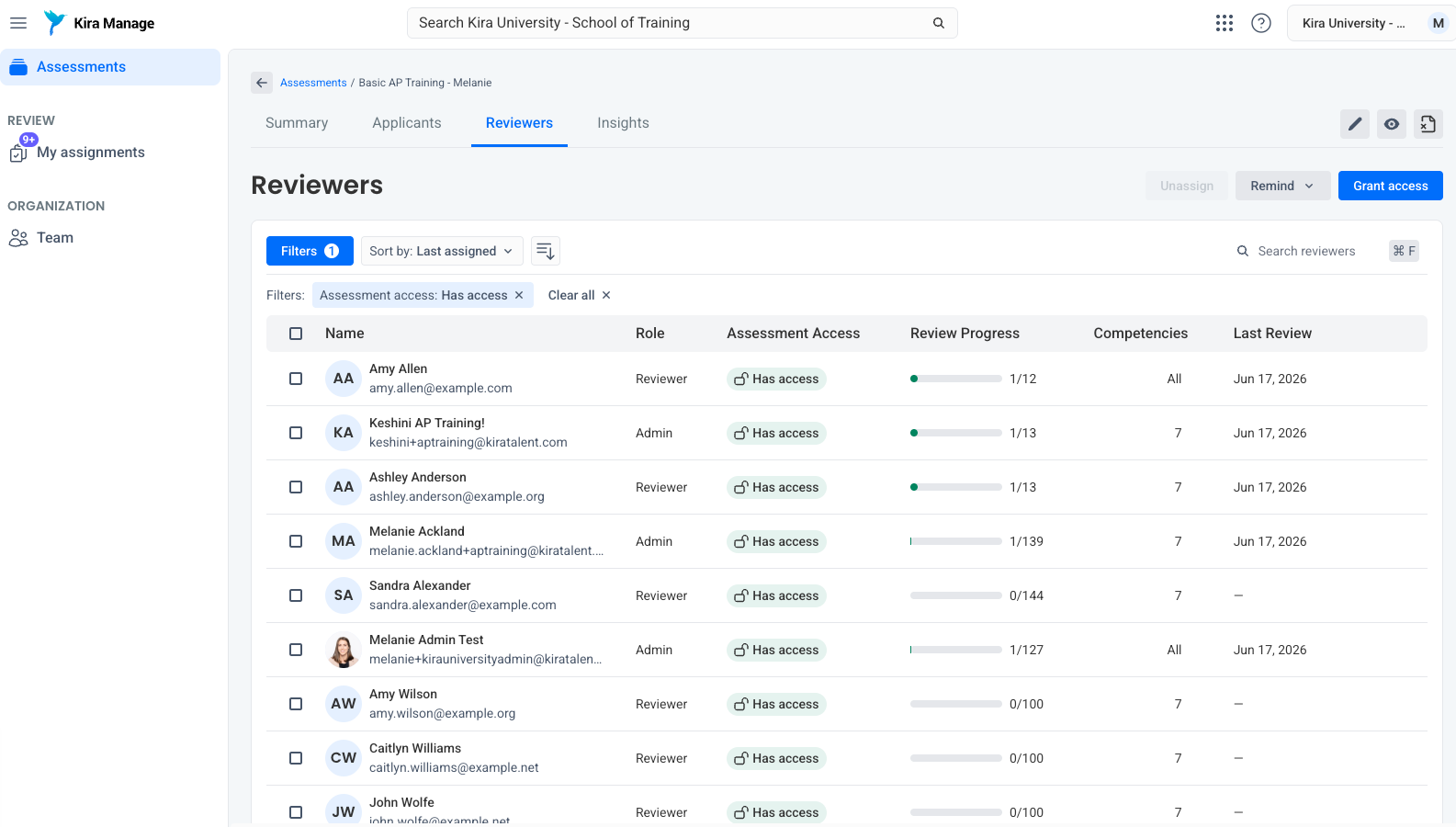
Reviewer List
The Reviewers tab displays all reviewers associated with the assessment.
Reviewer information includes:
- Reviewer Name (if available) & and Email
- Role
- Assessment Access Status
- Review Progress
- Competencies
- Last Review
Tip: Hover over the Review Progress bar to view up to nine of the reviewer's assigned applicants, including reviewed and unreviewed applicants.
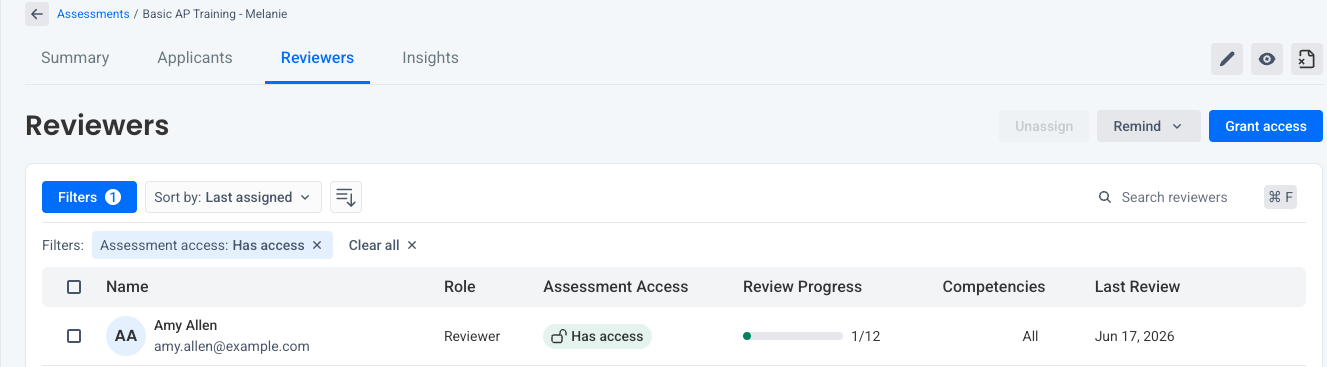
Search, Filter, and Sort Reviewers
Use the search field to locate specific reviewers.
Use filters and sorting options to review reviewer activity, access status, and assignment information.

Using Reviewer Progress
Use reviewer progress and activity information to help manage workload across your reviewer team. You can use it to:
- Identify reviewers who have completed their assigned reviews and may be ready for more applicants.
- See who is nearing the end of their assigned workload.
- Spot reviewers who may have significantly more assigned reviews than others.
- Identify reviewers who are falling behind and may need a reminder.
- Look for reviewers who have not been active recently and may need their assignments reviewed.
Reviewer Actions
Select a reviewer's name to open their reviewer details page.
Select the three-dot menu to access available reviewer actions, including:
- View Profile
- Remind
- Unassign
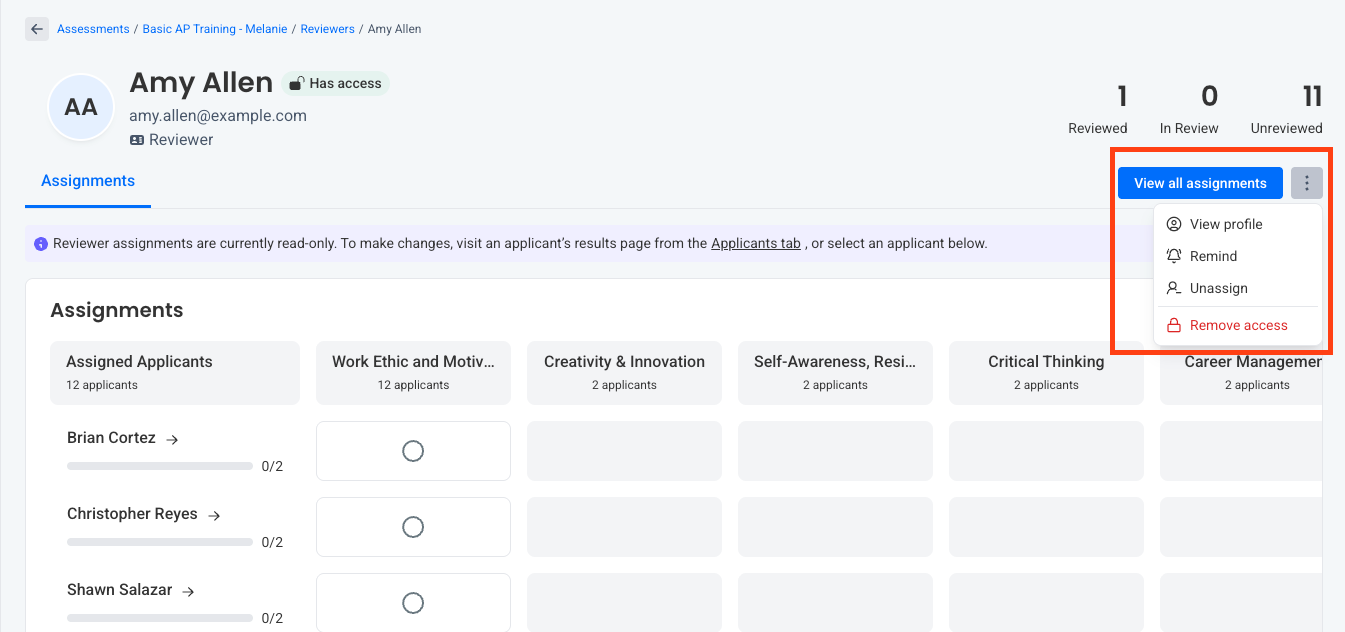
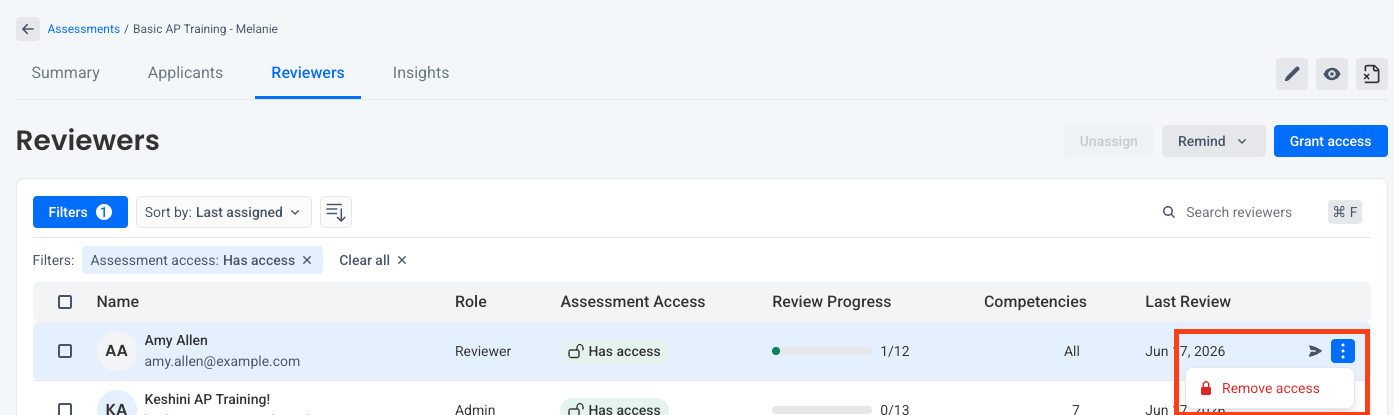
From the reviewer list you can grant or remove access from the three dot flyout menu
Manage Assessment Access
Reviewers must have assessment access before they can review applicants.
Select the three-dot menu beside a reviewer to:
- Grant assessment access
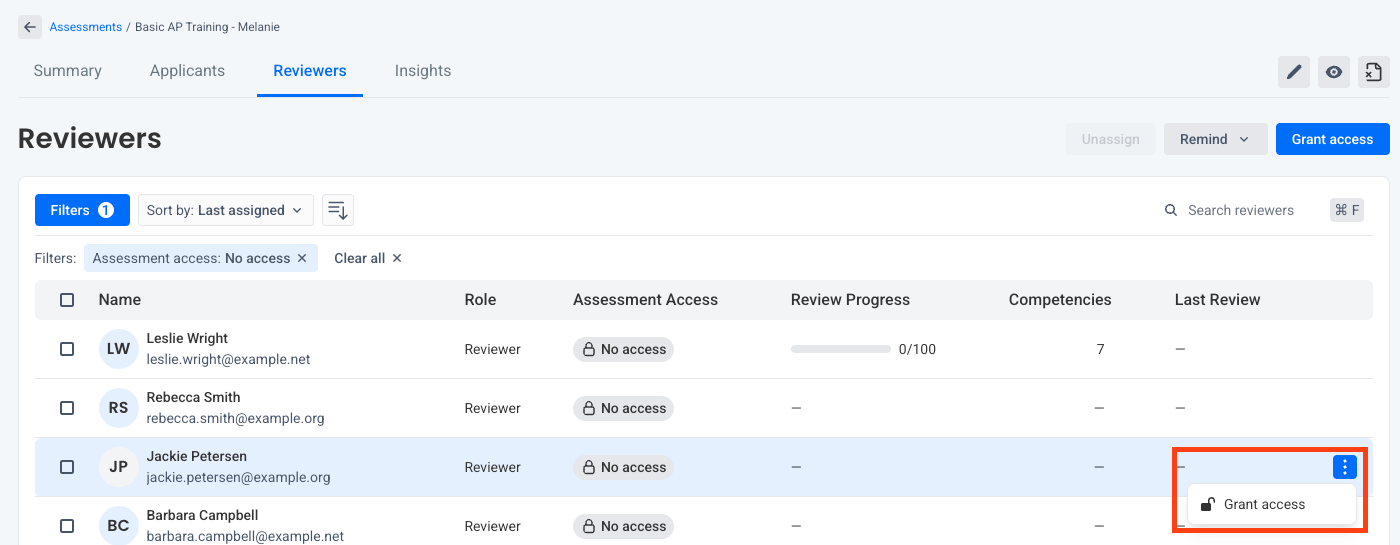
- Remove access
For detailed instructions or to manage reviewer access across multiple assessments, see Manage Assessment Access.
Send Reviewer Reminders
Use Remind to send reminder emails to reviewers who have outstanding reviews.
