How to Assign Reviewers via CSV
Overview
Assign via CSV allows you to create reviewer assignments by uploading a CSV file rather than using the standard Bulk Assign workflow.
This option is useful when you need precise control over reviewer assignments, including assigning specific reviewers to specific competencies for specific applicants.
Use Assign via CSV when you need to:
- Create highly targeted reviewer assignments
- Assign reviewers to specific competencies
- Manage complex horizontal review workflows
- Assign reviewers in bulk using an externally prepared file
Before You Begin
Before creating assignments:
- Ensure reviewers have been added to your organization's Kira Talent account.
- Ensure reviewers have assessment access
- Confirm applicants you wish to assign reviewers to have completed the assessment
- Understand which reviewers should be assigned to each competency
Note: Assign via CSV creates reviewer assignments based on the information provided in the uploaded file.
Step 1: Open Assign via CSV
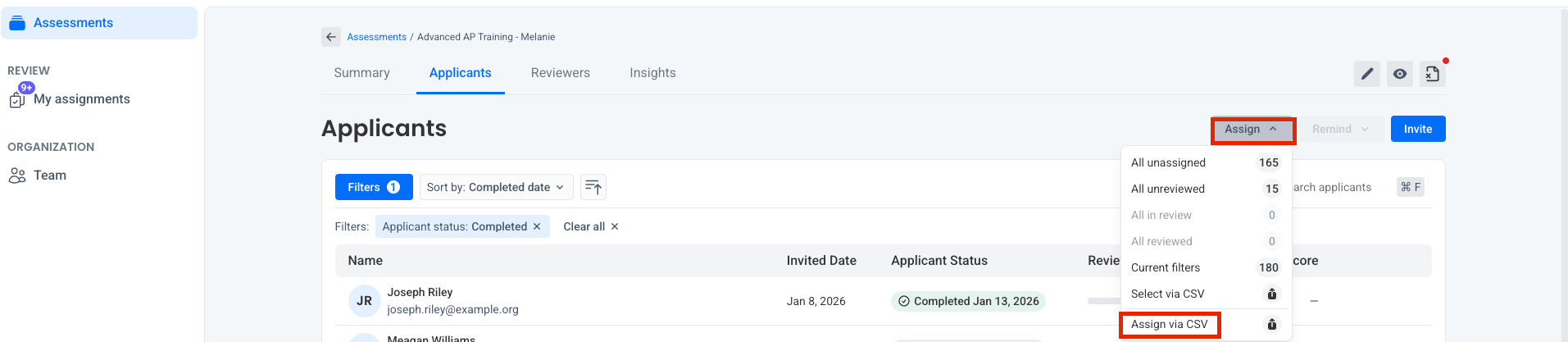
- Open the assessment.
- Navigate to the Applicants tab.
- Select Assign.
- Select Assign via CSV.
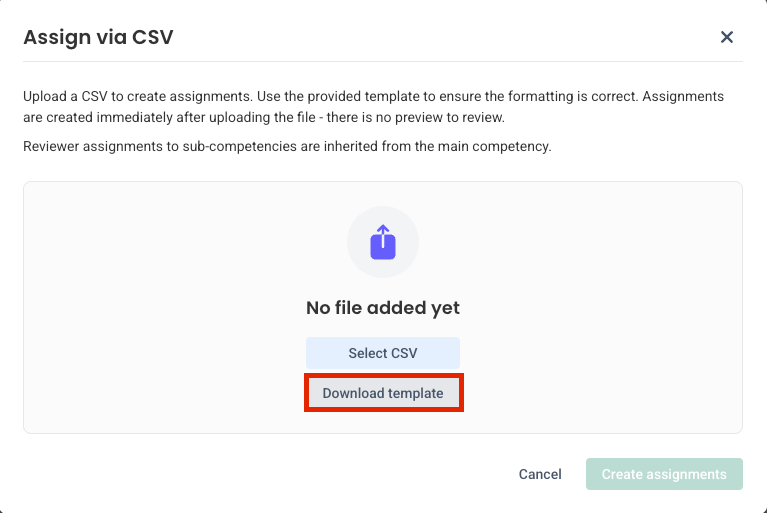
Step 2: Download the Template
- Select Download Template.
- Save the CSV file to your computer.
The template contains the columns required to create reviewer assignments for this assessment.
Step 3: Review the Template Structure
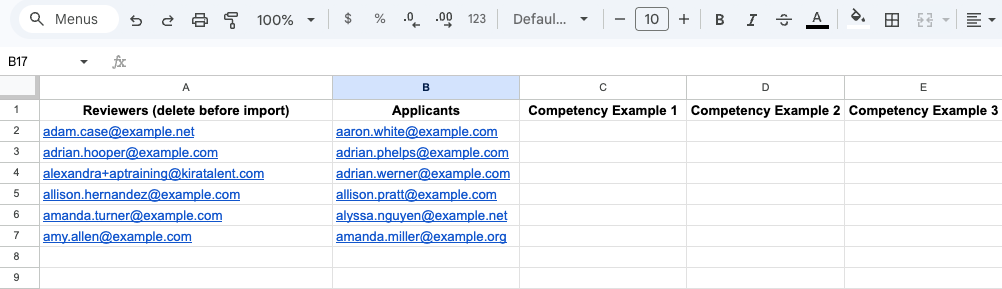
Open the downloaded CSV file.
The downloaded template contains the applicants, reviewers, and competencies currently available in the assessment. Using the provided template helps reduce assignment errors.
- Column A: Reviewers by email address (Note: delete before import)
- Column B: Applicant email addresses
- The remaining columns contain the parent competencies configured for the assessment.
- Reviewers can only be assigned to parent competencies in the CSV template. Child competency assignments are inherited automatically and do not need to be assigned separately.
Step 4: Complete the Template
- Remove any competency columns you do not plan to assign, or leave those columns blank.
- Enter reviewer email addresses into the competency columns for each applicant. Reviewer email addresses must match the reviewer email addresses listed in Column A.
Step 5: Review and Validate the File
Before uploading:
- Delete Column A (Reviewers).
- Remove any unused competency columns.
- Verify applicant email addresses are correct.
- Verify reviewer email addresses are correct.
- Save the file as a .csv file.
Step 6: Upload the CSV
- Return to Assign via CSV.
- Select Upload CSV.
- Choose your completed file.
- Upload the file.
Step 7: Verify Assignments
After the upload is complete:
- Return to the Applicants tab.
- Open several assigned applicants.
- Confirm reviewer assignments were created correctly.
- Verify competency assignments where applicable.