Invite applicants to an assessment
Use the Invite workflow to send invitations to individual applicants or groups of up to 1,000 applicants at one time.
Step 1: Open the Invite workflow
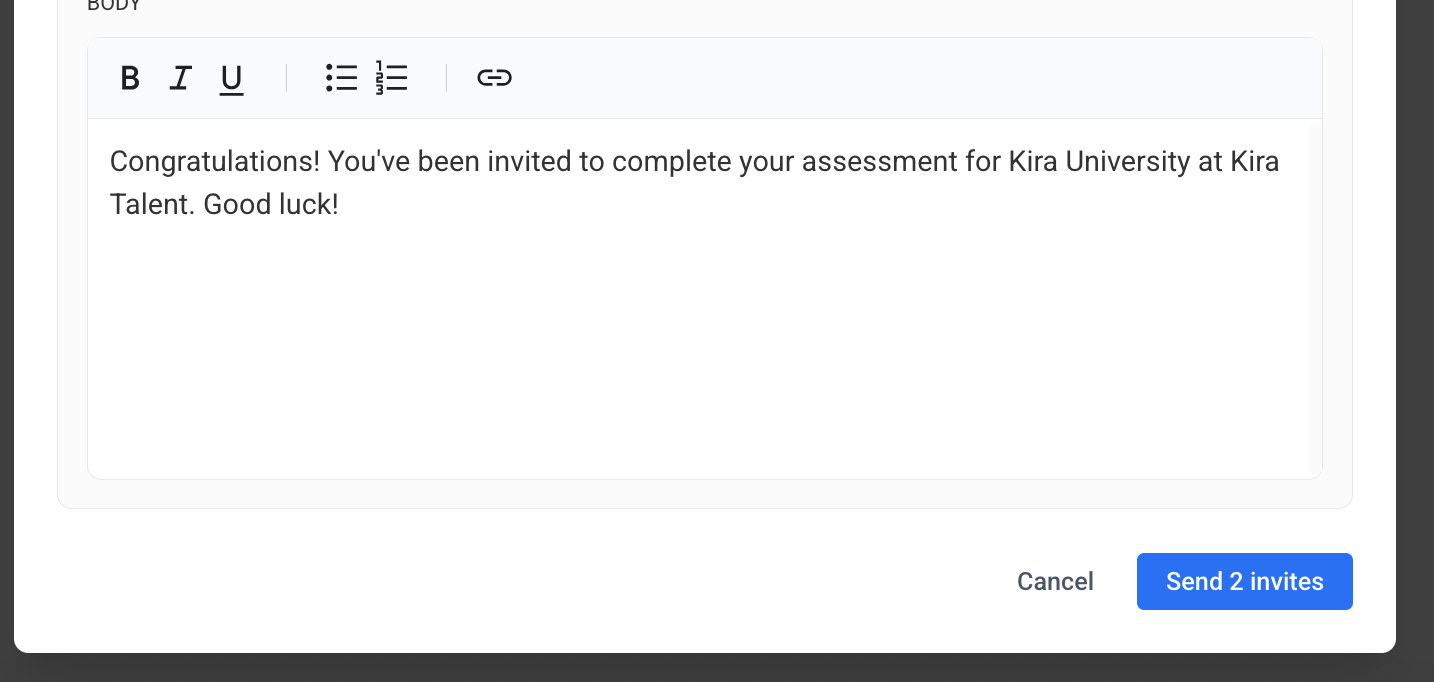
- Open your assessment
- Navigate to the Applicants tab
- Select Invite
Step 2: Add applicants
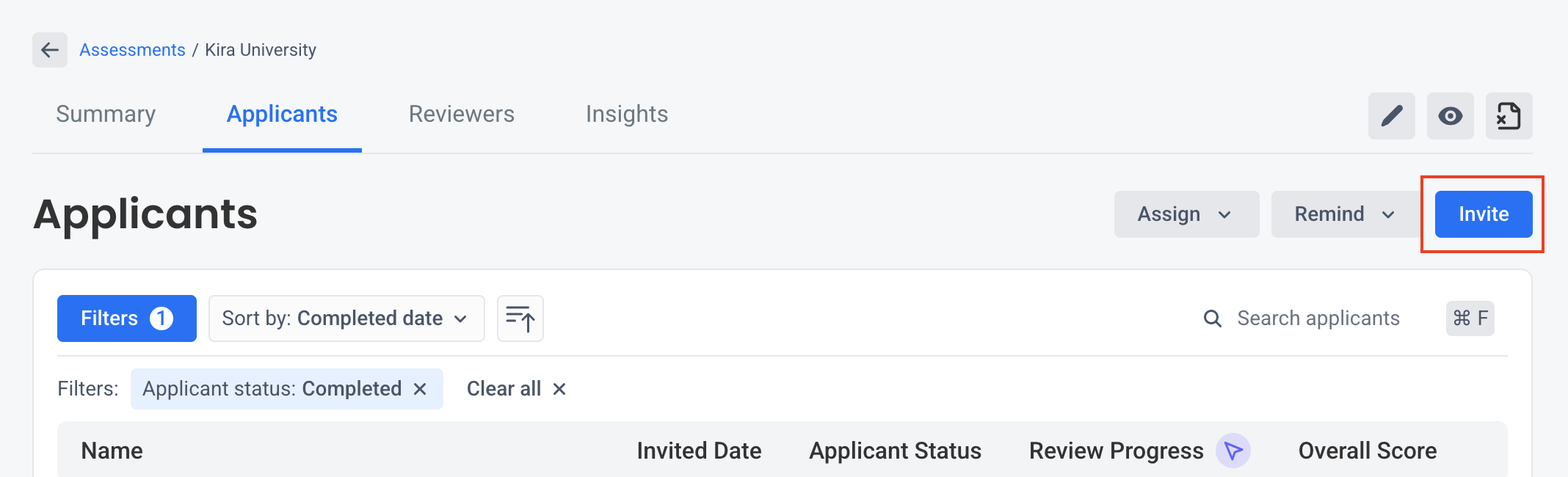
You can enter email addresses manually or upload a CSV file.
Enter email addresses manually
- Enter or paste one or more applicant email addresses into the field.
- Press Enter after each email address to add it to the list.
Upload a CSV file
- Select Upload CSV
- Upload a CSV file containing one column of applicant email addresses
Headers are optional. Each row must contain a valid email address.

Step 3: Customize and preview the invitation
You can customize the email before sending it to applicants.
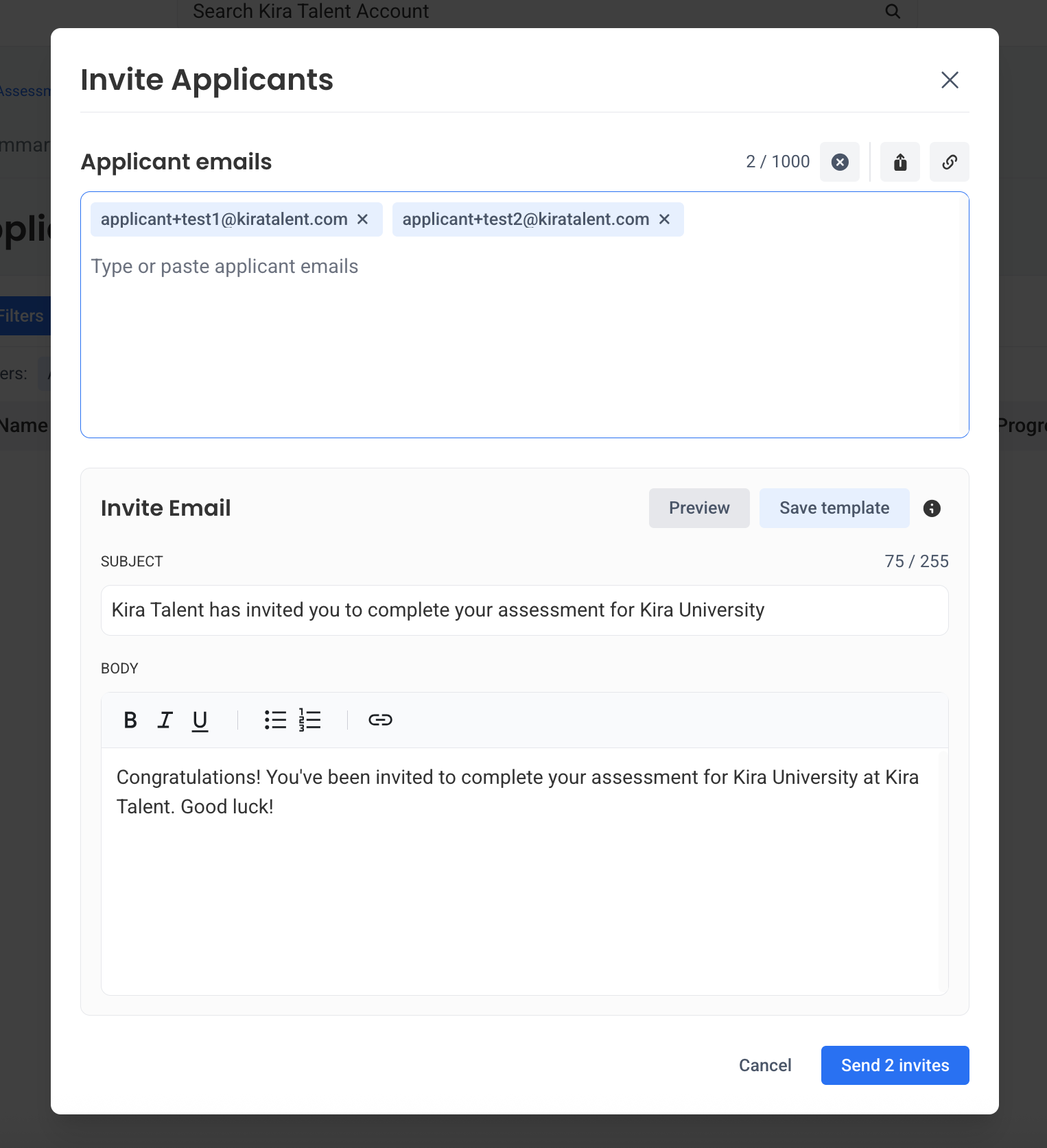
- Edit the email subject line and message body
- Select Preview to review the invitation
- Close the preview and make any necessary changes.
If you want to save your changes for future invitations to this assessment, select Save template at the top right.
Note: Saving the template makes the changes available to other administrators and staff members using the assessment.
Step 4. Send invitations
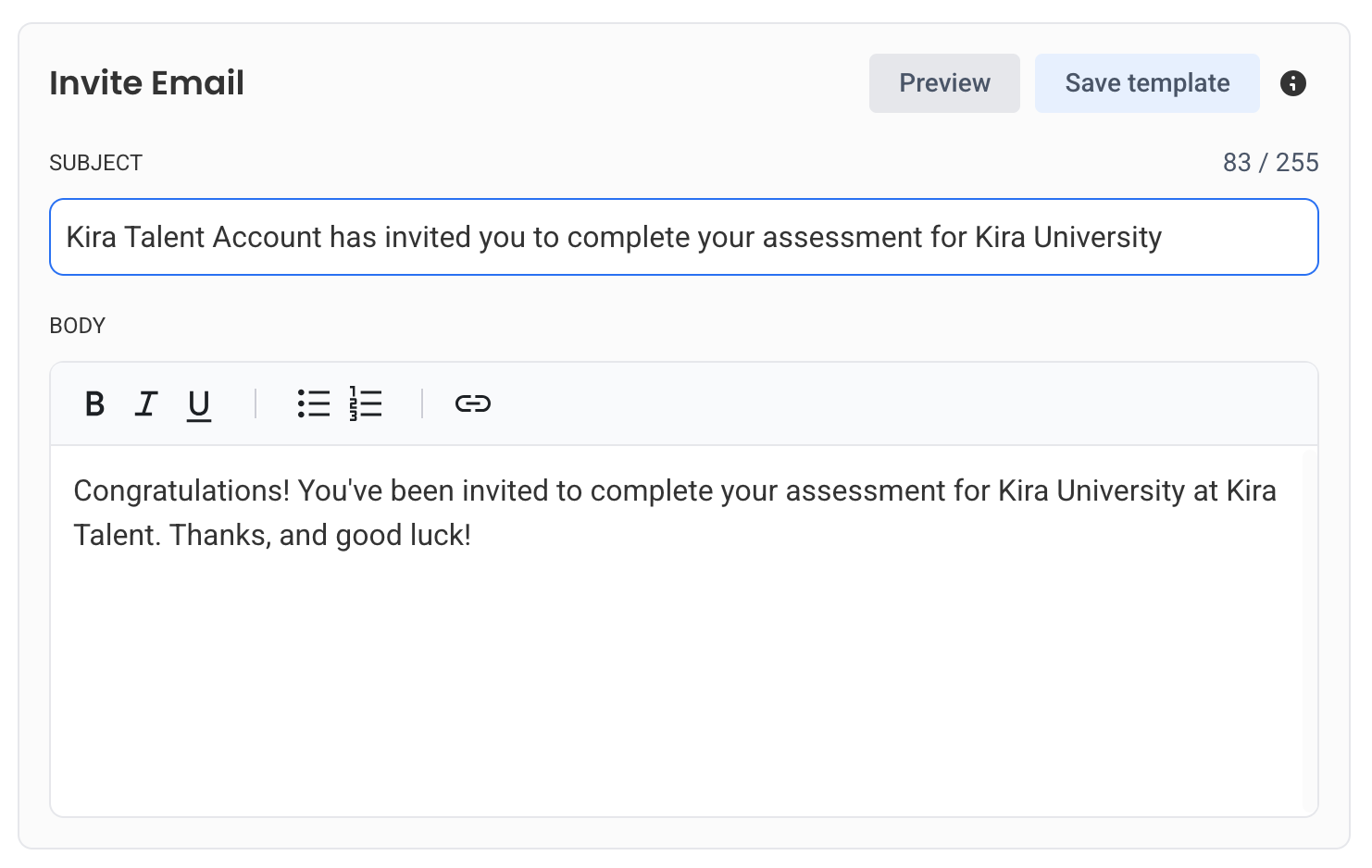
- Review the applicant list and invitation email content
- Select Send Invites at the bottom
Applicants will receive an email containing instructions to access the assessment.